
Ever launched a Google Ads campaign, checked your analytics, and had that sinking feeling that the data is just… wrong? It's a common headache. You know the ads are driving traffic, but your reports are a confusing mess. This is exactly where using a URL builder in Google Analytics to create tagged links makes all the difference. These simple tags, called UTM parameters, tell Google Analytics precisely where your traffic is coming from, so your ad spend gets the credit it deserves.
Why Your Google Ads Data Can Be So Misleading
It’s a story I’ve heard a hundred times. A marketer pours a hefty budget into a new Google Ads campaign, sees a promising spike in traffic, but the numbers in Google Analytics just don’t line up. That traffic often gets mislabeled as 'Direct' or tossed into other generic buckets, making it impossible to prove your return on investment (ROI).
This disconnect happens when Google Analytics can't see the full story behind a click. Without specific instructions, it has to guess where a user came from. And its guesses are often wrong, especially in the complex Google Ads ecosystem.
This leads to some serious problems for your campaigns:
- Misattributed Conversions: A sale that came directly from your "black-friday-sale" ad might get credited to organic search. Suddenly, the true hero of your campaign is completely invisible.
- Wasted Ad Spend: If you can't accurately see which campaigns, ad groups, or even which specific ads are driving results, you're flying blind. You could end up pouring money into underperforming ads while starving your hidden gems.
- Unreliable Reporting: When your data is a mess, you can't make smart decisions. Optimizing your Google Ads campaigns becomes a guessing game instead of a data-driven strategy.
Getting Attribution Right with a URL Builder
This is why a URL builder in Google Analytics isn't just a handy accessory; it's a foundational tool for any serious Google Ads professional. By tacking on UTM parameters—little snippets of code—to the end of your destination URLs, you feed clear, unambiguous data to your analytics for every single click.
It’s a straightforward process. You plug your campaign details into fields, and the tool does the rest.
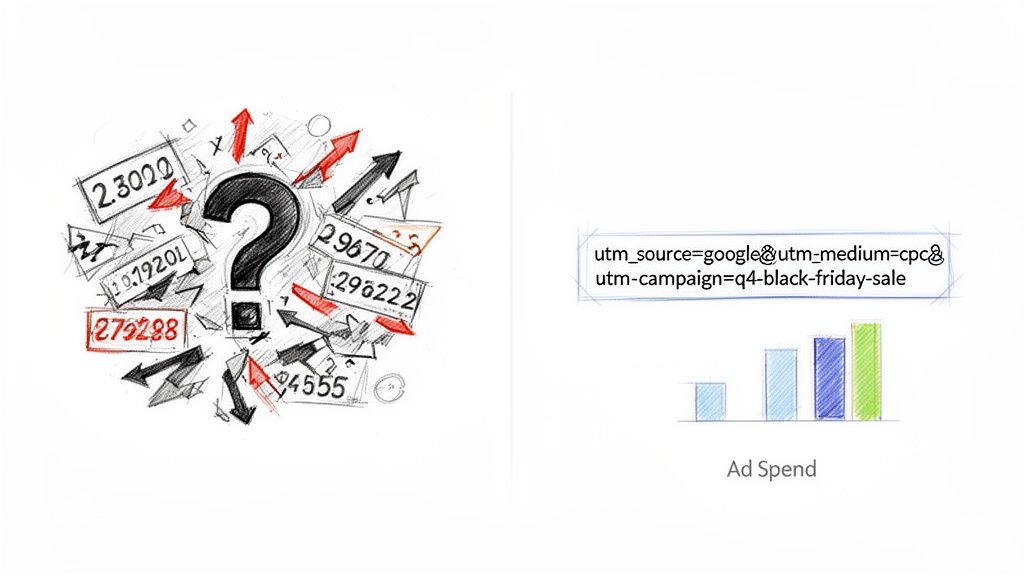
The result is a complete URL with all your campaign details baked right in, ensuring every click is properly logged and categorized the moment it happens.
Don't underestimate how big of a deal this is. Organizations that standardize their UTM creation often see their campaign attribution accuracy improve by 20%–60% in just a few months. This is especially true for paid search, where precise ROI calculations depend entirely on correctly-tagged links. If you want to dive deeper, you can explore more data on UTM effectiveness and campaign tracking.
How to Build Your First Google Ads Campaign URL
Diving into UTM parameters might seem a bit technical at first, but honestly, building your first tagged URL for a Google Ads campaign is simpler than you think. The whole point is to give Google Analytics a crystal-clear map showing exactly how someone landed on your site. We'll walk through it using Google's own Campaign URL Builder—it's free, easy, and gets the job done perfectly.
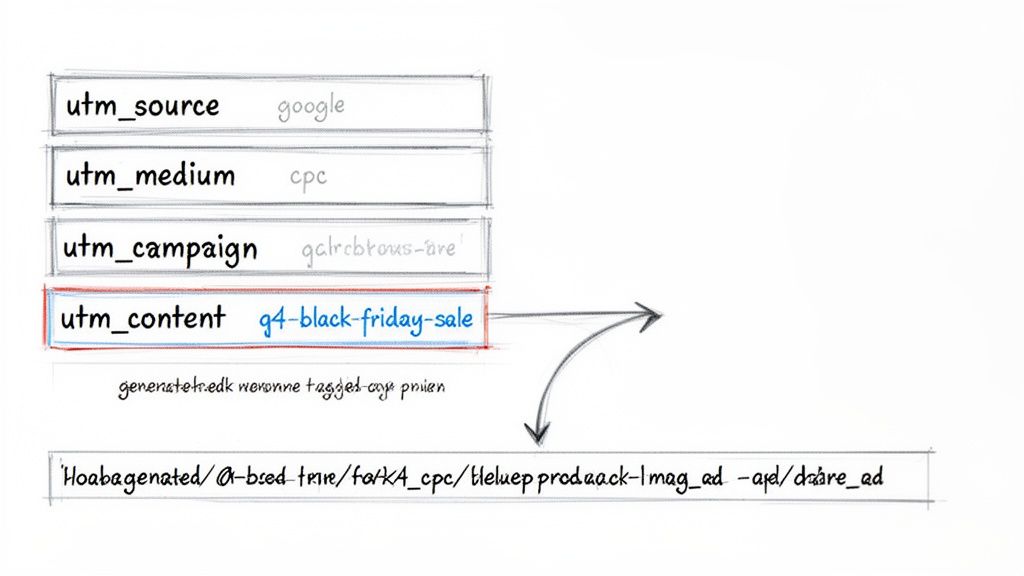
Let's run through a real-world scenario. Imagine we're an e-commerce shop gearing up for a massive promotion, and we need a URL that tracks clicks from a specific Google Ad for our upcoming Black Friday sale. All it takes is filling in a few key details.
Getting the Source and Medium Right
The first two tags, utm_source and utm_medium, are the absolute foundation. They answer the basic questions: "Who sent this visitor?" and "How did they get here?" When you're running Google Ads, there’s a non-negotiable standard for these.
-
Campaign Source (utm_source): This tells Analytics who sent the traffic. Since the ads are on Google, the source should always be google. I've seen people use "Google" or "google-ads," but that just splits your data into different buckets. Stick with lowercase google—it's the standard for a reason.
-
Campaign Medium (utm_medium): This explains how the traffic arrived. For paid search ads, the industry has long settled on cpc, which stands for "cost-per-click." This little tag is what instantly separates your paid traffic from organic, referral, or other channels in your reports.
Nailing these two ensures all your Google Ads traffic gets bundled together neatly, making your high-level reports clean and easy to read. Trust me, inconsistencies here are one of the top reasons I see for messy analytics data.
Naming Your Campaign for Total Clarity
Next up is utm_campaign. This is where you get to be descriptive and really strategic. My best advice? Make this tag identical to the campaign name you’re using inside your Google Ads account. This creates a perfect link between the two platforms.
Vague names like "Campaign 1" are completely useless down the road. You want to create a name that tells a story at a glance.
For our Black Friday example, a fantastic campaign name would be q4-black-friday-sale.
Why does this work so well?
- It's descriptive—you know the promotion and the time of year instantly.
- It's consistent—it uses all lowercase and dashes instead of spaces, a crucial best practice for clean data.
- It's scalable, meaning you can easily follow this pattern for future efforts, like 'q1-valentines-promo' or 'summer-clearance-24'.
By creating a logical naming system for your
utm_campaigntags, you're doing more than just tagging one link. You're building a searchable, filterable library of campaign data in Google Analytics that will pay dividends for years to come.
Using Campaign Content to Differentiate Your Ads
Finally, we have utm_content. This parameter is optional, but it's a total game-changer for A/B testing and figuring out which ad creative is actually hitting the mark. It lets you tell the difference between various ads that all point to the same URL within the same campaign.
Let's go back to our Black Friday campaign. Say you're running two different ads: one with a cool product shot and another featuring a customer video testimonial. You could use utm_content to tell them apart.
- Ad #1: blue-product-image-ad
- Ad #2: testimonial-video-ad
Now, when you dig into your GA4 reports, you won't just see that the 'q4-black-friday-sale' campaign brought in traffic. You’ll be able to see precisely which ad creative drove more clicks, conversions, and ultimately, more money. This is where you find the insights that turn a good campaign into a truly great one. Effectively using a URL builder in Google Analytics means leveraging these optional fields to get the richest data possible from your Google Ads account.
Laying the Foundation: A Scalable UTM Naming System
A URL builder is a great start, but its real magic comes from consistency. If you don't have a clear, documented system for how you name your parameters, your Google Analytics data will quickly turn into a messy, fragmented puzzle that’s impossible to piece together. Think of a scalable naming convention as the strategic blueprint that ensures every click from Google Ads tells a clean, understandable story.
Let's say you're running campaigns on Google and LinkedIn at the same time. If one person on your team tags the source as 'google' and another uses 'Google-Ads', your data is instantly split. These tiny inconsistencies snowball into reporting nightmares, making it a real headache to accurately compare how your campaigns are doing. This is exactly why setting up some ground rules isn't just a good idea—it's essential for any serious marketing team.
The Ground Rules for Clean Data
To sidestep these issues, your whole team needs to be on the same page with a few simple but crucial rules. These aren't just friendly suggestions; they're the bedrock of trustworthy analytics for the Google Ads ecosystem.
-
Stick to Lowercase. Always. Google Analytics is case-sensitive, which trips up a lot of people. In its world,
utm_source=googleandutm_source=Googleare two completely different things. Making lowercase mandatory for all parameters stops this fragmentation before it starts and keeps your data tidy. -
Use Dashes, Not Spaces. URLs can't handle spaces. Some browsers try to fix this on the fly, but it's a sloppy practice that can easily lead to broken links. Get in the habit of using dashes (-) or underscores (_) to separate words in your campaign names, like
black-friday-sale. -
Standardize Your Source and Medium Names. This one is huge. For Google Ads, always use
utm_source=googleandutm_medium=cpc. For other channels, create a master list of approved names, like 'facebook' or 'linkedin'. This consistency is what allows you to make true apples-to-apples comparisons.
A documented naming convention becomes the single source of truth for your entire organization. It gets rid of the guesswork and makes sure that whether an intern or a senior marketer is building a link, the data flowing into your URL builder in Google Analytics stays clean and uniform.
Building Your Team's Go-To UTM Template
The best way to get everyone to follow these rules is to create a shared resource they can all use. Honestly, a simple spreadsheet is often the perfect tool for this. It can serve as both a guide and a running log of all your campaign URLs.
This template should spell out your conventions and give your team a simple builder to work with. When people just have to fill in predefined fields, you guarantee every URL is built correctly, every single time. It takes the guesswork out of the equation and makes being consistent the easiest option.
Here’s a look at how you could structure a naming system specifically for your Google Ads campaigns. A framework like this ensures you capture all the important details in a way that’s predictable and easy to analyze later.
UTM Naming Convention Template for Google Ads
This sample framework shows how you can apply consistent naming rules to different Google Ads campaigns, which is key to keeping your Google Analytics data organized.
| Campaign Goal | utm_campaign | utm_content | utm_term | Example Usage |
|---|---|---|---|---|
| Lead Generation | lg-q4-ebook-download | video-ad-testimonial | {keyword} | Tracks a Q4 lead gen campaign for an ebook, differentiating a video ad. |
| Brand Awareness | aw-2024-summer-launch | influencer-collab-post | brand-awareness | Monitors a brand awareness campaign for a summer product launch. |
| E-commerce Sale | ec-black-friday-sale | 25-off-static-banner | broad-match-deal | Follows a Black Friday sale, specifying the '25% off' banner creative. |
| Retargeting | rt-abandoned-cart-users | dynamic-product-ad-1 | all-visitors-7d | Isolates a retargeting effort for users who abandoned their cart in the last 7 days. |
By setting up a clear, logical structure like the one above, you’re not just creating links—you’re building a powerful, clean dataset that will give you reliable insights for years to come.
Automating Campaign Tracking in Google Ads
Let's be honest, nobody has time to manually build campaign URLs for every single ad. It's a tedious process and a surefire way to make mistakes that will mess up your data. The good news is you can automate this entire process right inside Google Ads, making sure every click gets tracked perfectly without the manual headache of using a URL builder in Google Analytics.
The simplest way to get started is with Google's auto-tagging feature. When you flip this on, Google automatically adds a unique code—the Google Click Identifier (gclid)—to the end of your URLs. This little snippet acts as a handshake between Google Ads and Google Analytics, passing all the rich data like ad groups, keywords, and more directly into your reports.
For most advertisers, turning on auto-tagging is a must-do first step for clean, reliable data. But if you're also sending data to third-party tools or just want more granular control, there's a more powerful way to do things.
Mastering Automation with ValueTrack Parameters
For a truly "set it and forget it" solution, you’ll want to get familiar with ValueTrack parameters. It sounds a bit technical, but the concept is simple: you create one master tracking template for your entire account. This template then dynamically pulls information straight from your campaigns and plugs it into your UTMs.
This means you can automatically fill in the utm_campaign, utm_content, and utm_term for every ad without ever having to touch them individually.
Here's a universal tracking template that I've used for years. You can copy and paste this directly into your Google Ads account settings:
{lpurl}?utm_source=google&utm_medium=cpc&utm_campaign={campaignid}&utm_content={adgroupid}&utm_term={keyword}
So, what’s going on here? Let’s break it down:
- {lpurl}: This is just a placeholder for your ad's final landing page URL.
- utm_source=google & utm_medium=cpc: These are static values. They tell Analytics that the traffic came from Google and was a paid click (cost-per-click).
- {campaignid}: Dynamically inserts the unique ID of the campaign that served the ad.
- {adgroupid}: Automatically adds the ID of the specific ad group the user clicked from.
- {keyword}: This pulls in the exact keyword that triggered your ad.
This whole process relies on a foundation of solid naming conventions. Without consistency, even automation can't save you from messy data.
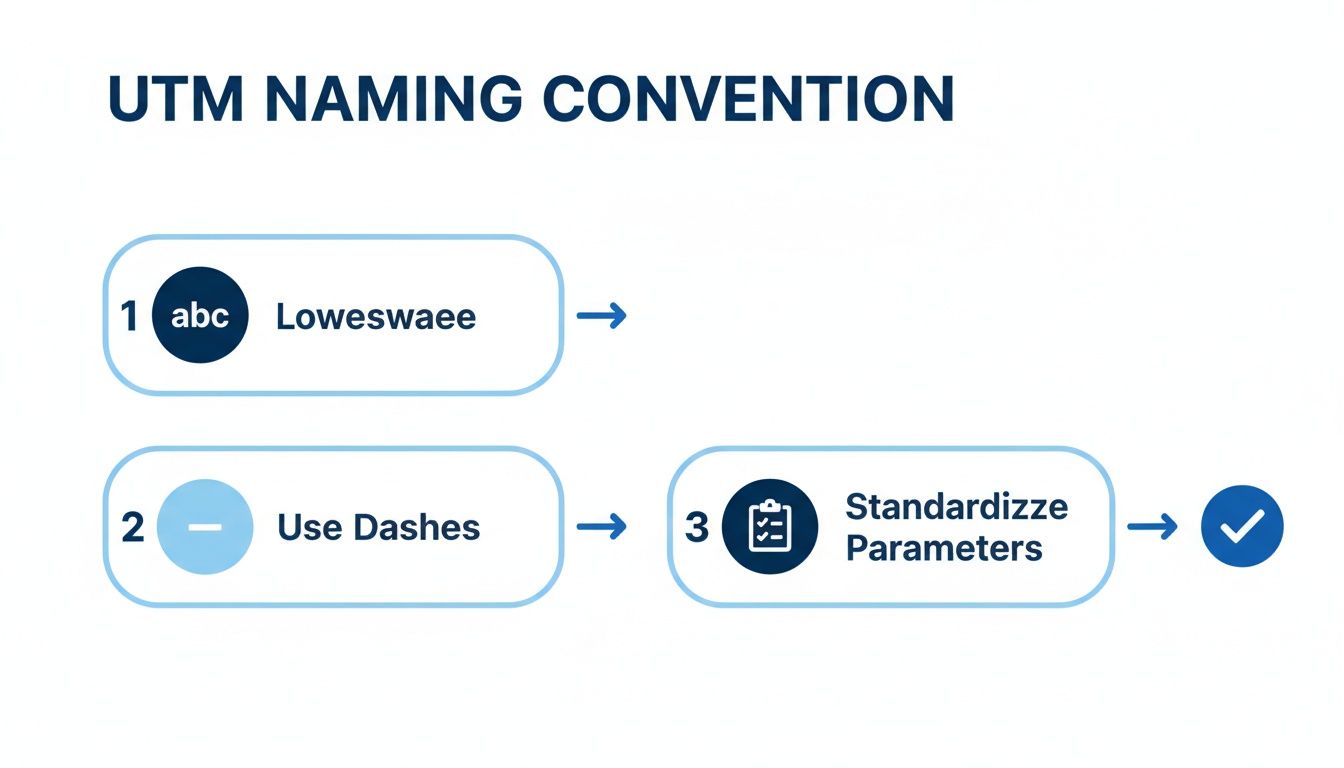
As you can see, simple rules like sticking to lowercase and using dashes instead of spaces are crucial. It's this kind of consistency that prevents your data from getting fragmented in your analytics reports.
Setting Up Your Tracking Template
Putting this into action is surprisingly easy. You just need to set it up once at the account level, and Google Ads will automatically apply it to every campaign, ad group, and ad you have now and in the future.
Just head over to your account settings, find the "Tracking" section, and paste the template into the "Tracking template" field. That's it. From that point on, every ad click will be tagged with a consistent, data-rich URL.
Using a tracking template with ValueTrack parameters is a game-changer. It takes human error out of the equation, saves a ton of time, and guarantees that every click from your Google Ads campaigns is tagged with precise and valuable data. This gives you the deep, clean insights you need to actually optimize your campaigns and make better decisions.
Troubleshooting Common UTM Tracking Mistakes
We’ve all been there. That sinking feeling when you open up your Google Analytics reports and realize a tiny UTM mistake has completely messed up your campaign data. A single typo or a moment of inconsistency can split your reports, making it impossible to see how your Google Ads are really performing.
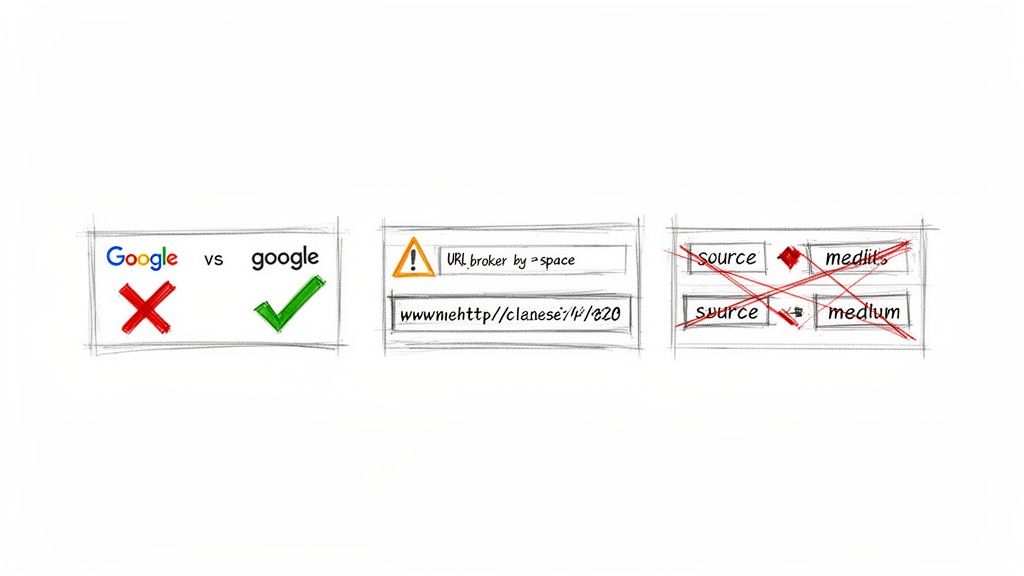
Let's walk through how to spot and fix these common slip-ups before they cause any real damage. The goal is to get your data from a chaotic mess to clean, reliable insights. Most of these issues boil down to a few usual suspects: inconsistent casing, using spaces where you shouldn't, or confusing basic parameters like source and medium.
Identifying and Fixing Common Errors
The absolute key to clean data is consistency. Once you have a system, you have to stick to it. Here are the most common ways people get tripped up.
-
Inconsistent Casing: This is the big one. Google Analytics is case-sensitive, so it sees
utm_source=googleandutm_source=Googleas two different traffic sources. This fractures your data and hides the true, combined performance of your campaigns. The best practice is simple: just use lowercase for everything.- Don't Do This:
&utm_source=Google&utm_medium=CPC - Do This Instead:
&utm_source=google&utm_medium=cpc
- Don't Do This:
-
Using Spaces in Parameters: URLs can’t handle spaces. While some browsers might automatically convert a space to
%20, it's a recipe for broken links and lost tracking data. Stick to hyphens or underscores to separate words.- Don't Do This:
&utm_campaign=black friday sale - Do This Instead:
&utm_campaign=black-friday-sale
- Don't Do This:
-
Mixing Up Source and Medium: This is a fundamental mistake but happens all the time. The source tells you where the traffic came from (like
google). The medium tells you how it got there (likecpc). If you swap these, your channel groupings in GA4 will be a mess, and your reports won't make sense.
Getting these details right has a huge impact. For example, marketing teams that implemented a strict and consistent url builder in google analytics process after the GA4 transition saw their incorrectly tagged campaign links drop by around 60%. This, in turn, made their page-level campaign metrics 30%–50% more accurate. You can see more stats on these GA4 reporting gains on magecomp.com.
Spotting Errors in Your GA4 Reports
So, where do you go to hunt for these mistakes in your Google Analytics 4 property? Your first stop should always be the 'Traffic acquisition' report.
Just head over to Reports > Acquisition > Traffic acquisition. From there, set your primary dimension to "Session source / medium". If you see entries like "google / cpc" and "Google / cpc" on separate lines, you’ve found a casing inconsistency. Another major red flag is a sudden spike in traffic from (direct) / (none), which is often a symptom of broken campaign URLs or missing parameters. You can learn more about improving data hygiene in our guide covering the role of analytics in advertising.
Make it a habit to check your Traffic acquisition report regularly. Look for anything that doesn't match your naming conventions. Clean, organized reports are the hallmark of a solid tracking strategy and ensure the data from your Google Ads is something you can actually trust and act on.
Got Questions About URL Builders? We've Got Answers.
As you get deeper into UTM tracking for Google Ads, a few common questions always seem to pop up, especially around connecting Google Ads and Google Analytics. Let's clear up some of the most frequent head-scratchers so you can keep your data clean and your insights sharp.
Should I Use Auto-Tagging or Manual UTMs?
When it comes to tracking your Google Ads campaigns in Google Analytics, auto-tagging is almost always the way to go. This feature, which uses the gclid parameter, automatically pushes a ton of rich data—like ad groups, keywords, and more—straight into your analytics. It's a lifesaver.
The main exception? If you're also sending campaign data to a non-Google analytics tool. In that case, you might need manual tags. A good middle ground is to use both: let auto-tagging handle the seamless Google integration, and add manual tags in a tracking template to feed your other systems.
Where Did My Campaign Data Go in GA4?
Finding your campaign reports in Google Analytics 4 is a little different from Universal Analytics. Here's the path:
Navigate to Reports > Acquisition > Traffic acquisition.
From there, change the primary dimension to ‘Session campaign’. This will show you a clean report of how all your tagged URLs are performing. If you want to dig a bit deeper, you can add a secondary dimension like ‘Session source / medium’ to get more context.
And for the real power users, the 'Explore' section is your best friend for building custom reports to analyze very specific campaign metrics.
Can I Use URL Shorteners with My UTM Links?
Yes, absolutely! Using a URL shortener like Bitly with a long, parameter-heavy UTM link is not only possible but often a great idea. It keeps your posts looking clean, especially on social media.
The process is super simple:
- First, build your complete URL with all the UTM parameters using your favorite URL builder.
- Copy that entire long URL—parameters and all.
- Paste it directly into your URL shortening tool.
The short link it generates will still point to the full URL, and all your tracking parameters will pass through perfectly to Google Analytics when someone clicks it. It's the best of both worlds: clean links and complete tracking data.
Stop losing valuable leads from your Google Ads campaigns. Pushmylead instantly forwards lead information from your lead form extensions directly to your inbox, eliminating the need to manually download them. Get your leads in real-time by visiting https://www.pushmylead.com.